The layers panel provides a compact, list-based view of every section on your page. It is an alternative to working directly on the canvas and is especially useful for pages with many sections where scrolling through the full canvas would be slow.
Click the Layers icon in the sidebar to open the layers panel. The icon looks like stacked horizontal lines. When the layers panel is open, it replaces the current sidebar panel.
To close the layers panel, click the X button at the top of the panel or click the Layers icon again.
Each section on your page is represented as a row in the layers panel. Each row displays:
Order number - A numbered badge showing the section's position on the page (1, 2, 3, etc.)
Section type - The name of the section (e.g., "Hero 01", "Benefits 03", "FAQ 02")
Section category - A subtle label showing the category (e.g., "hero", "benefit", "faq")
Drag handle - A grip icon on the left for reordering
Action buttons - Duplicate and delete buttons that appear on hover
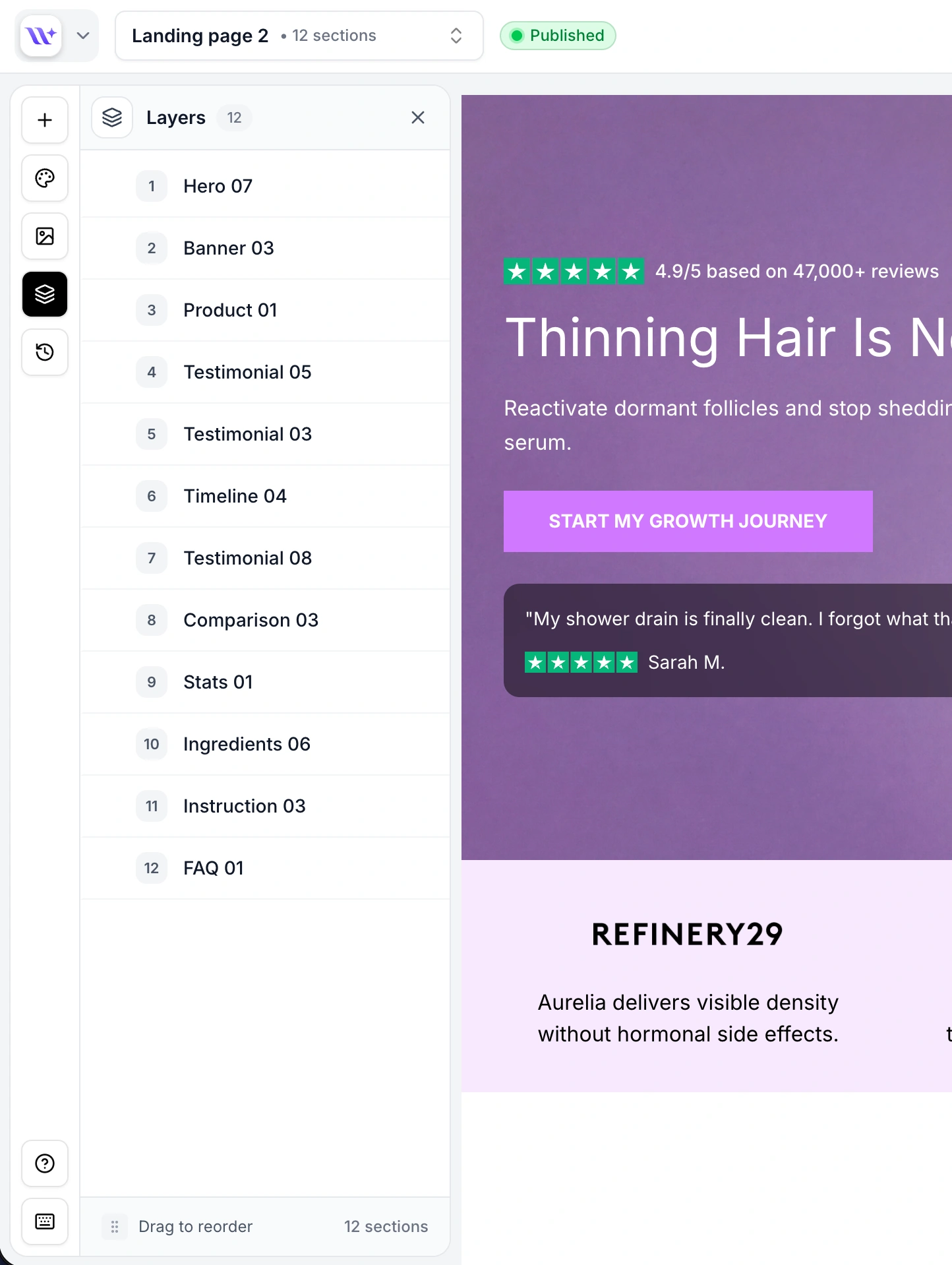
The currently selected section is highlighted with a purple accent border and background.
Click on any layer item to:
Select the section - It becomes the active section in the builder
Scroll to the section - The canvas automatically scrolls (or pans, in free canvas mode) to bring the section into view
Open the config panel - If you switch to the config panel, it will show the selected section's properties

You can drag sections to new positions directly in the layers panel:
Grab the drag handle
Hover over the layer item you want to move. A drag handle (grip icon) appears on the left side of the row. Click and hold it.
Drag to the new position
Move the item up or down in the list. A visual indicator shows where the item will be placed.
Release to drop
Let go to drop the section in its new position. The order numbers update automatically, and the canvas reflects the new arrangement.

To duplicate a section from the layers panel:
Hover over the layer item
Click the copy icon that appears on the right side of the row
A duplicate of the section is inserted immediately after the original
A toast notification confirms the duplication
The duplicate inherits all the configuration of the original section, including text content, images, colors, and layout settings.
To delete a section from the layers panel:
Hover over the layer item
Click the trash icon that appears on the right side of the row
The section is removed from the page immediately
A toast notification confirms the deletion

Ctrl/Cmd + Z. The deletion is recorded in the undo/redo history.Feature | Layers panel | Canvas |
View full page structure | Compact list, all sections visible at once | Must scroll through the full page |
Reorder sections | Drag compact list items | Drag full section previews |
Select sections | Click layer item | Click section on canvas |
Edit content | Not available (use config panel) | Inline text editing available |
Visual preview | Names and numbers only | Full visual preview |
Best for | Navigation, reordering, managing many sections | Editing content, visual design work |
Drag and drop - More about the drag-and-drop system.
Undo/Redo and history - How to undo changes and manage versions.
