Page versions let you save snapshots of your page at specific points in time. You can preview past versions, restore them, or use them as safety nets while experimenting with major changes.
The version system provides two types of saves:
Type | How It Works | When It Happens |
Manual | You explicitly save a version | When you click "Save Version" in the history panel |
Auto-periodic | The system automatically creates backup versions | At regular intervals while editing |
Both types are stored in the version history panel and can be previewed or restored at any time.
Click the History icon (clock icon) in the builder sidebar to open the version history panel. The panel displays all saved versions in reverse chronological order (newest first).
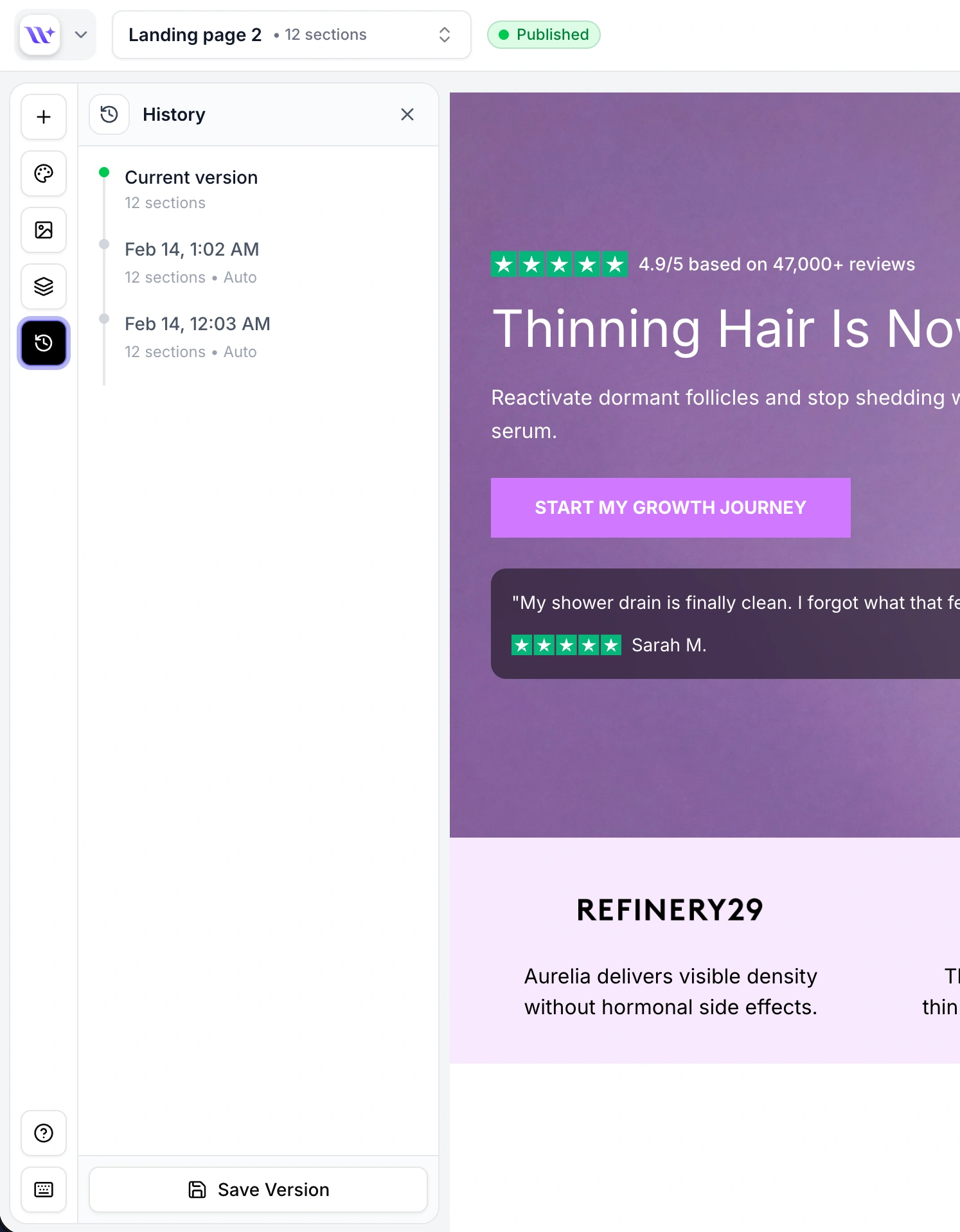
Open the history panel
Click the History icon in the builder sidebar.
Click Save Version
Click the Save button (floppy disk icon) at the top of the panel. A new manual version is created from the current state of your page.
Verify the save
The new version appears at the top of the list with a timestamp and section count. Manual versions are labeled to distinguish them from auto-periodic backups.

EcomWize automatically creates periodic backup versions while you work. These are labeled as "auto_periodic" in the version type and serve as automatic safety nets.

You can preview any saved version to see how it looked without committing to a restore:
Click on a version
In the history panel, click on the version you want to preview. The system fetches the full version data and loads it into the canvas.
Review the preview
The canvas updates to show the sections from that version. You can scroll through all sections and switch between desktop and mobile views.
Decide your next step
After previewing, you can either:
Restore the version to make it your current page state
Cancel the preview to return to your current work

To restore a version and make it your current page state:
Preview the version first
Click on the version to preview it and verify it contains the content you want.
Click Restore
Click the Restore button that appears in the preview controls. This replaces your current page sections with the version's sections on the server.
Continue editing
After restoring, the version's sections become your working page. The undo/redo history is reset. You can continue editing from this restored state.
To remove a version from the history:
Find the version
Locate the version you want to delete in the history panel.
Click the delete button
Click the trash icon on the version card. A confirmation dialog appears to prevent accidental deletion.
Confirm deletion
Confirm the deletion in the alert dialog. The version is permanently removed.
Each page can have up to 20 versions. When the limit is reached:
New manual saves may require deleting an older version first
Auto-periodic versions may replace the oldest automatic backup
Manual versions are prioritized and not automatically deleted
Each version in the history panel shows:
Detail | Description |
Version name | Custom name (for manual) or auto-generated label |
Version type | "manual" or "auto_periodic" |
Section count | How many sections the version contains |
Timestamp | When the version was created |
Feature | Undo/Redo | Versions |
Scope | Individual actions (50 states max) | Full page snapshots |
Persistence | Lost when you leave the builder | Saved permanently to your account |
Use case | Quick corrections while editing | Major checkpoints and backups |
Ctrl/Cmd+Z and Ctrl/Cmd+Shift+Z) for quick corrections during an editing session, and Versions for saving major milestones you might want to return to days or weeks later.Always save a manual version before restructuring your page, deleting multiple sections, or changing the brand style. This gives you a reliable fallback.
When saving versions, use descriptive names like "Before hero redesign" or "Client review v2" so you can quickly identify them later.
Periodically delete old versions you no longer need to stay within the 20-version limit and keep your history manageable.
Always preview a version before restoring it. This lets you verify the content without losing your current work.
