The text format toolbar is a floating contextual toolbar that appears whenever you select text in the canvas. It provides quick access to formatting options, size controls, alignment, color pickers, and AI rewriting - all without leaving the canvas.
The toolbar appears automatically when you:
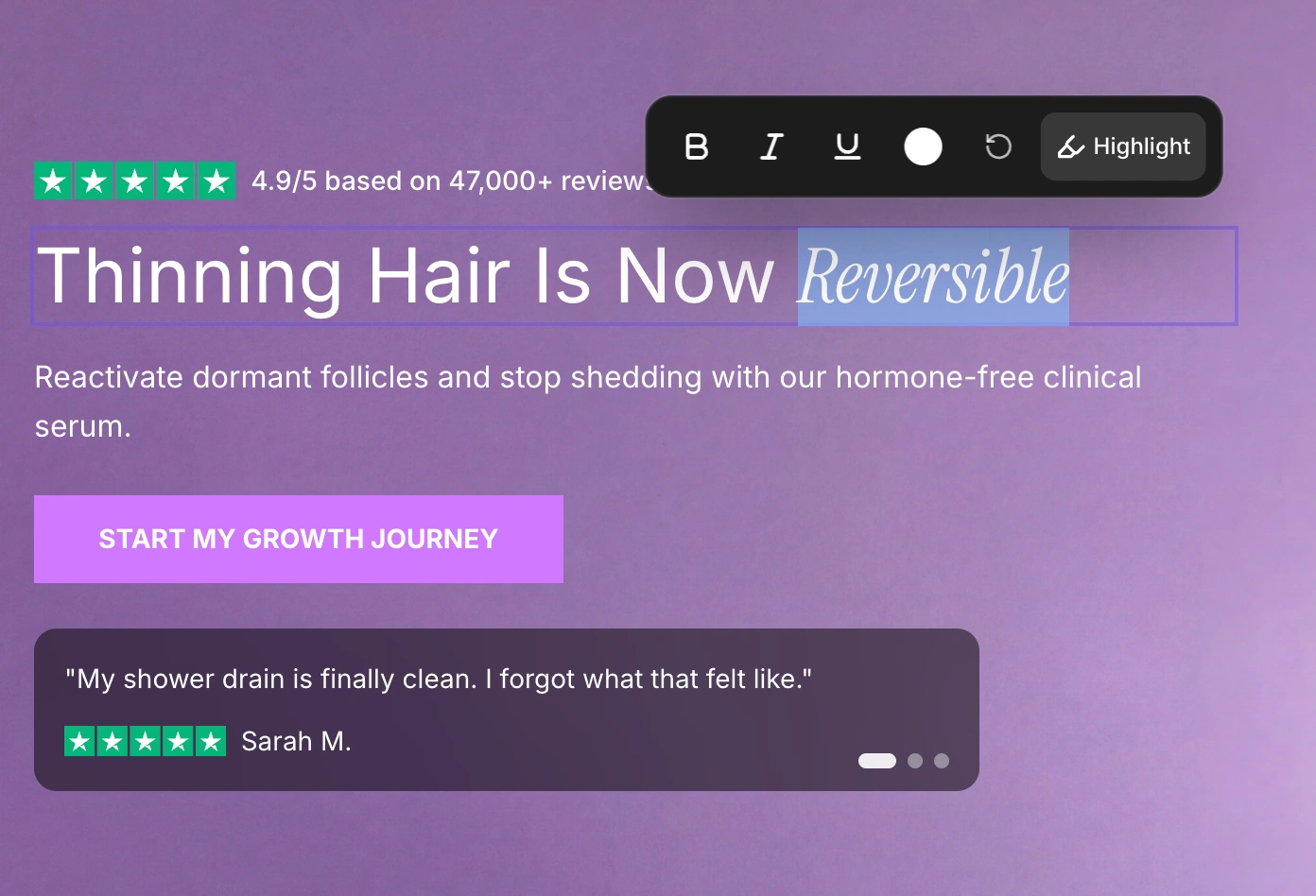
Select part of a text block (partial selection) - Shows inline formatting options like bold, italic, and underline.
Click on a full text block (whole block selected) - Shows block-level controls like alignment, heading size, and AI rewriting.
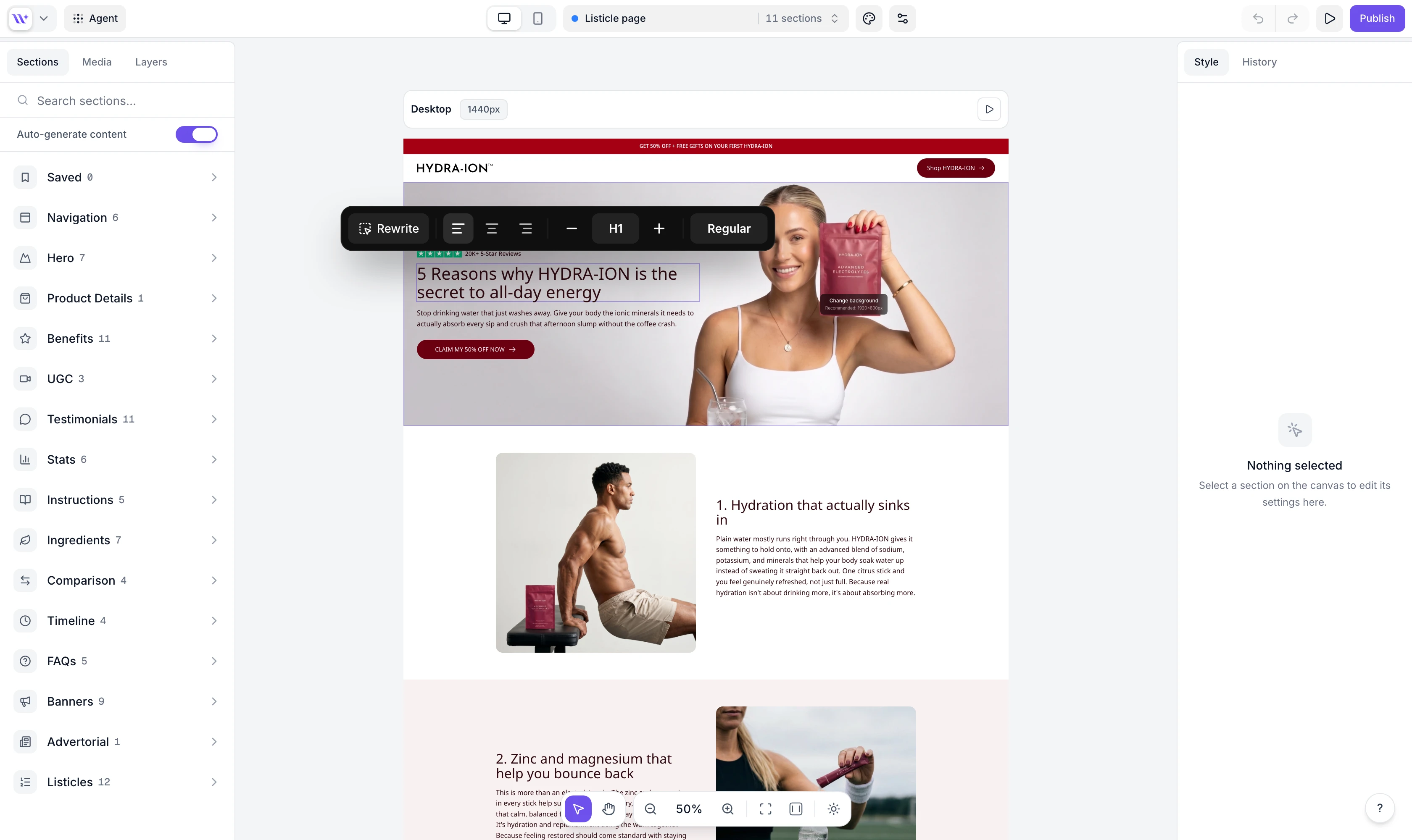
The toolbar is positioned above your selection and centers horizontally. It slides in with a smooth animation.

When you select a portion of text within a block, the toolbar shows inline formatting options:
Button | Action | Shortcut |
B (Bold) | Toggle bold formatting | Cmd/Ctrl + B |
*I* (Italic) | Toggle italic formatting | Cmd/Ctrl + I |
U (Underline) | Toggle underline formatting | Cmd/Ctrl + U |
Click the color circle button to open the color picker. The circle displays the current text color of your selection.
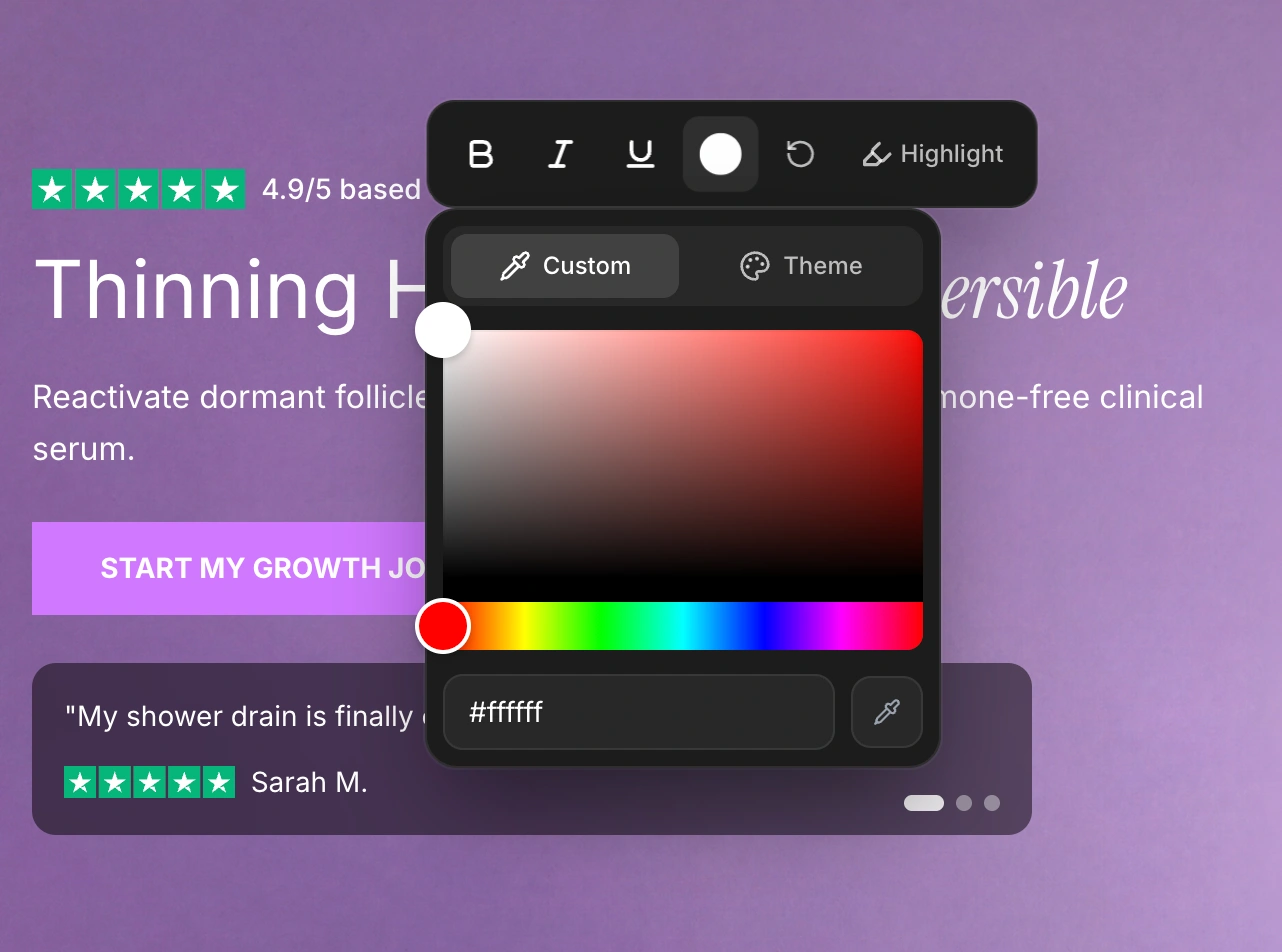
The color picker has two tabs:
A full color picker with:
Saturation/brightness selector
Hue slider
Hex color input field (type a hex code like #FF5733 and press Enter)
Eyedropper tool (click to pick any color from your screen - available in supported browsers)
Quick-access swatches from your brand style, organized into groups:
Brand colors - Primary, secondary, and tertiary brand colors
Text colors - Headline and body text colors
Button colors - Button background, hover, and text colors
Click any swatch to apply that color instantly.
When your selected text contains formatting spans (bold, italic, color changes, etc.), a reset button (circular arrow icon) appears. Clicking it removes all inline formatting from the selection, returning the text to its default style.
For heading text (H1-H6), if text highlighting is enabled in your brand style, a Highlight toggle appears. Activating it wraps the selected text in the highlight font configured in your brand style.
When an entire text block is selected, the toolbar switches to block-level controls:
The Rewrite button (with the sparkle icon) opens the EcomWize Agent with the selected text pre-filled, allowing you to rewrite the content using AI prompts.
Three alignment buttons control the horizontal alignment of the text block:
Button | Alignment |
Left align | Aligns text to the left edge |
Center align | Centers text horizontally |
Right align | Aligns text to the right edge |
The currently active alignment is highlighted.
The heading size controls let you change the typographic level of the text block:
Minus button (-) - Decrease size (e.g., H1 becomes H2, P1 becomes P2)
Size dropdown - Shows the current size level. Click to open a dropdown with all nine options:
H1 through H6 - Heading levels (largest to smallest)
P1 through P3 - Paragraph levels (largest to smallest)
Plus button (+) - Increase size (e.g., H3 becomes H2, P2 becomes P1)

A font weight control is available on every heading, price, badge, and paragraph. It lets you override the boldness of that specific text element without changing your brand style's global weight defaults.
When you select text inside a button element, the toolbar shows only the Rewrite button. Other formatting options are hidden since button text inherits its styling from the brand style (button font size, weight, and color).
For fields that come from external data (like Shopify product titles and prices), the toolbar shows:
Edit in Shopify button - Opens the Shopify admin in a new tab where you can edit the source content.
Size controls - Minus, size dropdown, and plus buttons to adjust how the field is displayed in the builder.
Formatting options like italic and color are not available for read-only fields, but you can still adjust their size and font weight.
