The stars toolbar appears when you click on a star rating element in a section. Star ratings are commonly used in testimonial sections, review highlights, and social proof blocks. The toolbar lets you quickly switch between star styles.
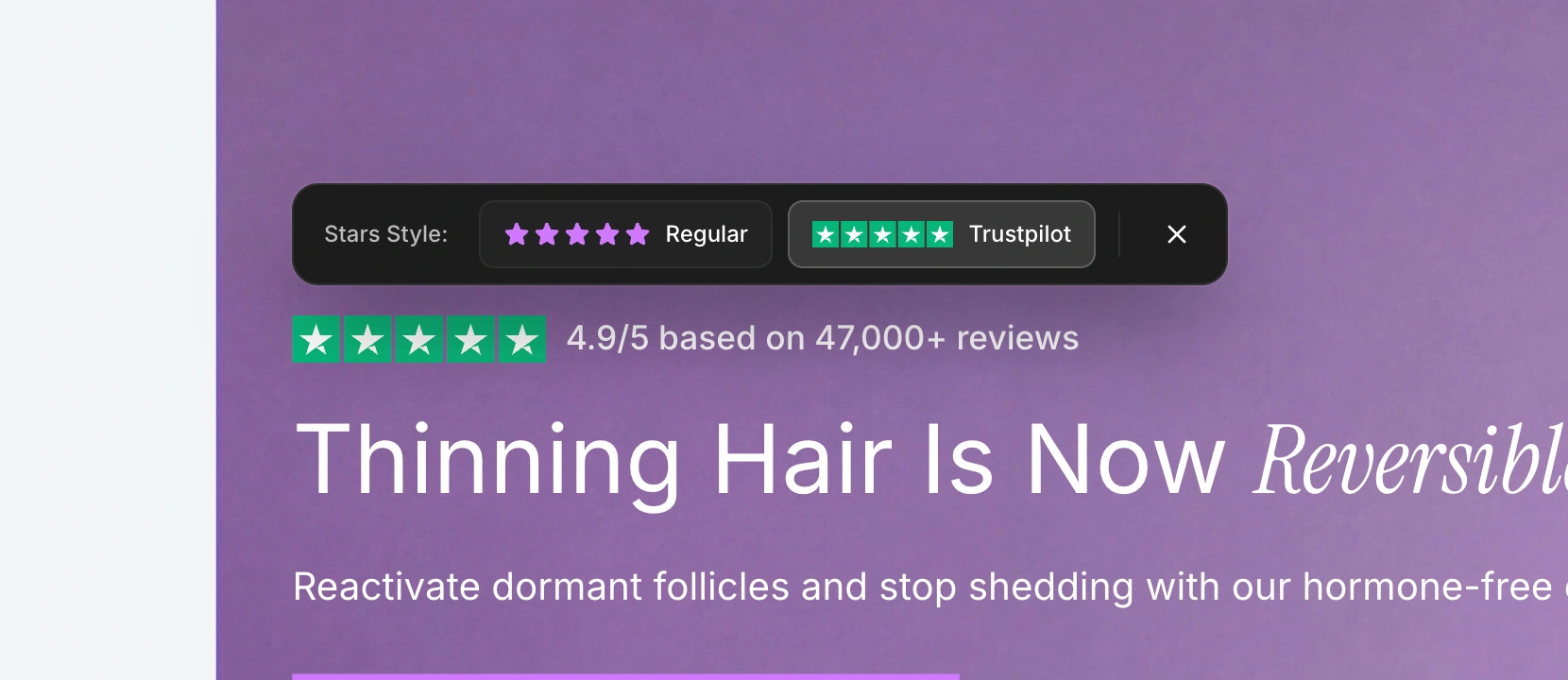
Click on any star rating element in the canvas. The toolbar appears above the stars.

The toolbar presents two star style options side by side, each with a visual preview:
The Regular option uses filled star icons. These are simple, clean five-pointed stars rendered in the star color defined for the element.
Stars are rendered using a filled star icon.
The star color is inherited from your brand style's star icon color setting.
This style works well for generic review displays and custom-branded testimonials.
The Trustpilot option uses the official Trustpilot star rating graphic. This displays the recognizable green Trustpilot stars that consumers associate with verified reviews.
Uses the official Trustpilot 5-star SVG asset.
Ideal when referencing Trustpilot reviews specifically.
Provides instant visual credibility through brand recognition.

Click on the star rating
Click any star rating element in your section. The stars toolbar appears.
Select a style
Click either the Regular or Trustpilot button. The currently active style has a highlighted border. The change applies immediately in the canvas.
Close the toolbar
Click the X button or click anywhere outside the toolbar to close it.
The star color for Regular stars is inherited from your brand style's star icon color setting. You can change this color in the Colors tab of your brand style editor.
Star rating elements are available in several section types:
Testimonial sections - Display customer review ratings alongside testimonial text.
Hero sections - Show aggregate ratings near headlines for social proof.
Product sections - Display product review scores near pricing and CTA buttons.
Stats sections - Highlight customer satisfaction metrics with visual star ratings.
