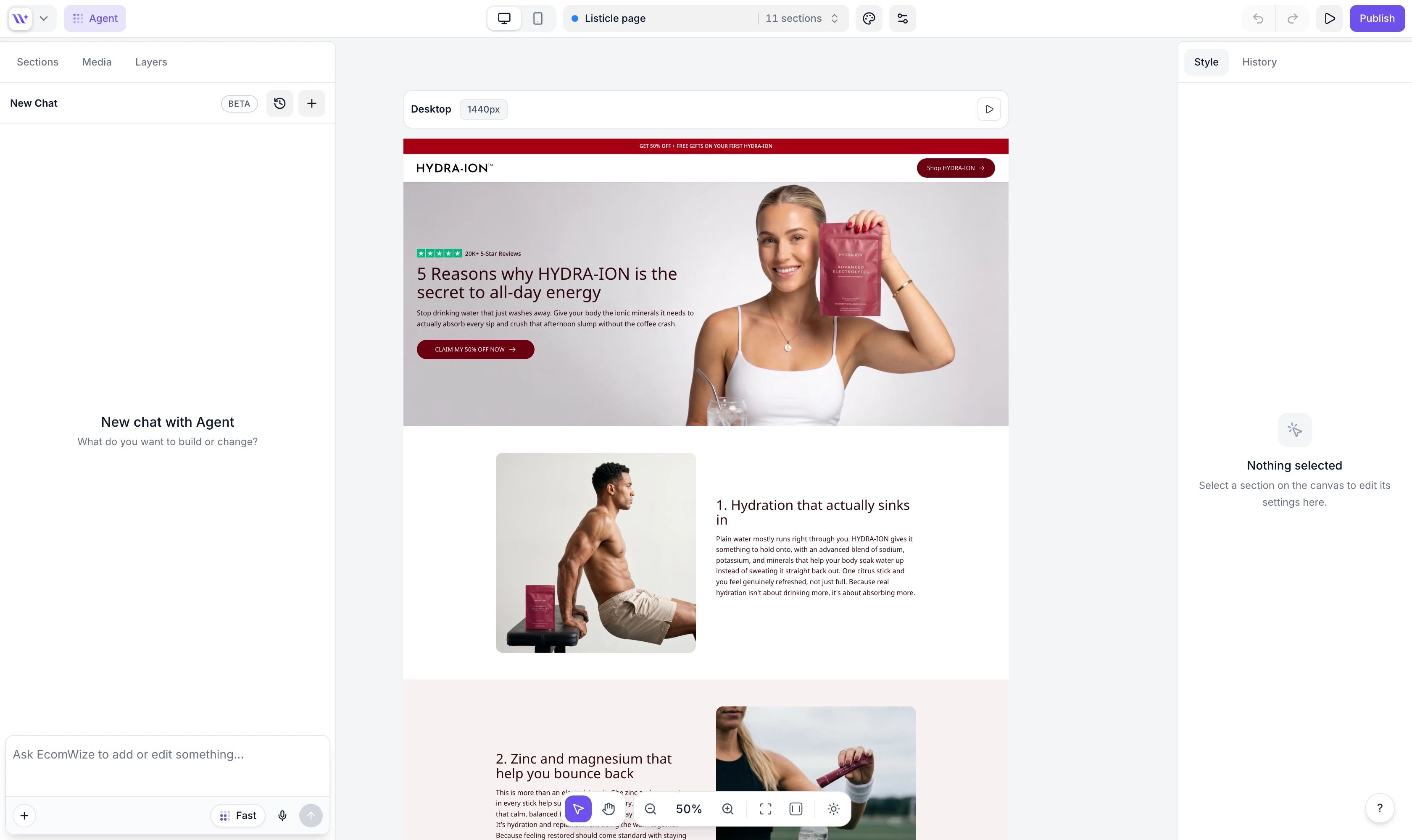
EcomWize Builder includes the EcomWize Agent, an AI chat panel that can rewrite any text in your sections - and also edit or build entire pages from plain-language instructions. Whether you want to make your copy shorter, more emotional, or packed with social proof, the Agent handles it in seconds.

The Agent panel is always accessible in the builder. It appears as a chat interface with a text input and your current credit balance.
Select a section
Click on any section in the canvas to select it, so the Agent knows which content to rewrite. You can also just describe the section in your message.
Select text to rewrite
Click on any editable text field within the selected section to target it specifically, or let the Agent work on the whole section.
Send your instruction
Type what you want changed in the Agent chat, then press Enter or click the send button. Fast mode is ideal for quick copy rewrites.
Here are 10 proven rewriting styles you can ask the Agent for to improve your copy:
Style | What it does |
Shorter | Makes the text more concise and to the point |
Longer | Expands the text with additional details and depth |
Simplify | Simplifies the language for easier reading comprehension |
Fix spelling | Corrects any spelling and grammar errors |
More emotional | Makes the copy more emotionally engaging and persuasive |
Logical benefits | Shifts the focus to logical benefits and product features |
Social proof | Adds a social proof and testimonials angle to the text |
Urgency/Scarcity | Introduces urgency and scarcity messaging |
Aspirational | Makes the text more aspirational and inspiring |
FOMO | Adds fear of missing out elements to drive action |
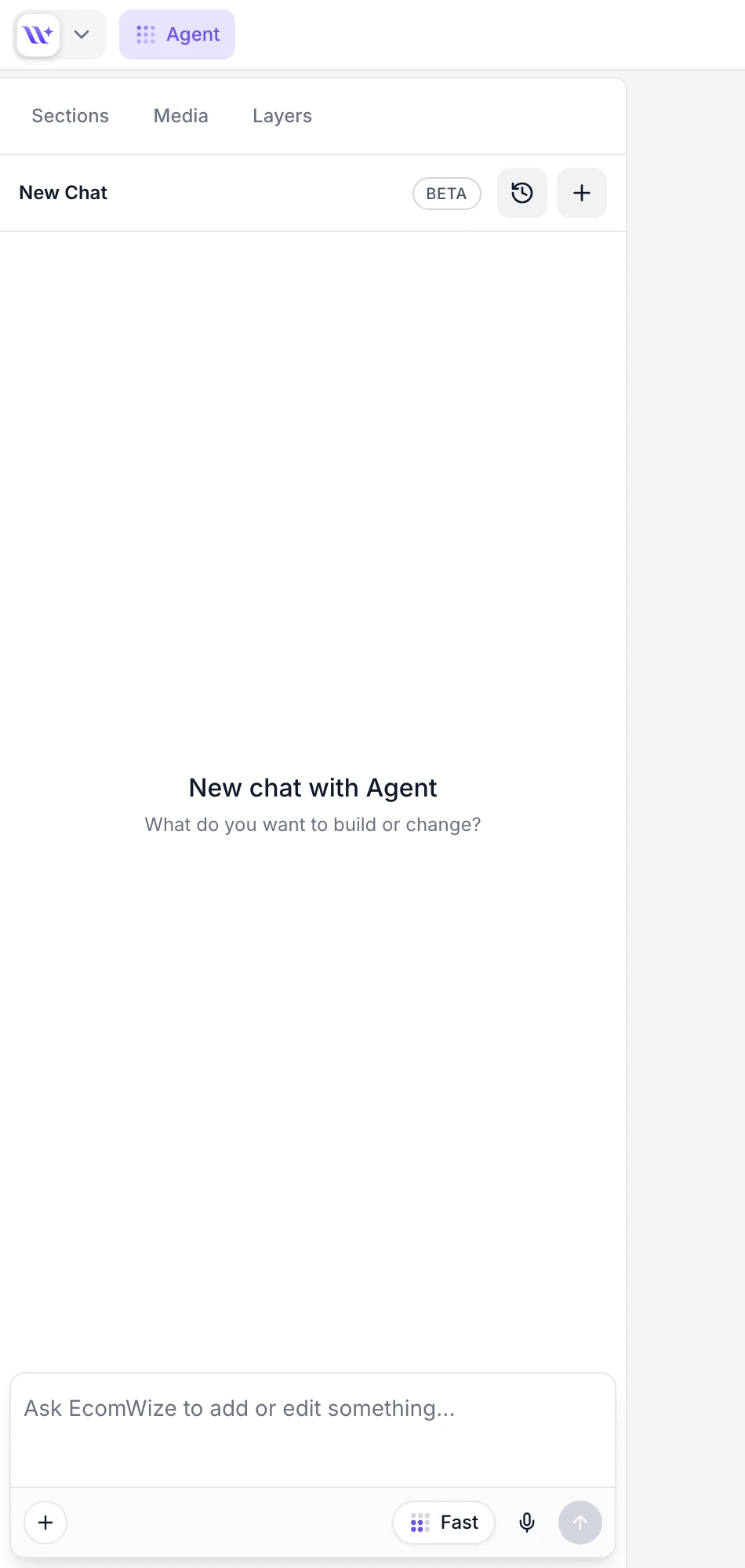

Type a custom instruction in the Agent input field. You can be as specific as you like.
Examples of effective custom prompts:
"Rewrite this for a Gen Z audience using casual, fun language"
"Add a money-back guarantee mention"
"Make this sound more premium and luxurious"
"Shorten to under 10 words"
"Focus on the health benefits of the ingredients"
When you trigger a rewrite, here is what happens behind the scenes:
Text extraction - The Agent identifies all editable text fields in the selected section (headings, descriptions, button text, bullet points, etc.).
Context building - Your prompt and the selected text are sent to the AI model along with the section structure and your page chat history.
Content generation - The AI generates rewritten text that matches your instructions while preserving the section's structure and formatting.
Automatic update - The rewritten text is applied directly to the section. The change is added to your undo history, so you can always revert if needed.

Agent messages cost 5+ credits per message. Your current credit balance is displayed in the Agent panel. Editing your pages manually is always free.
If you run out of credits, you will see an error message with an option to upgrade your plan for more credits. See AI Credits for details on credit allocation by plan.
Instead of "make it better," try "make the headline more action-oriented and add a specific benefit." The more context you give, the better the output.
You can run multiple rewrites on the same text. Start with a style change (e.g., "More emotional"), then refine (e.g., "Shorten to one sentence"). The Agent remembers your page's chat history, so follow-ups build on earlier instructions.
Every rewrite is saved to the undo history stack. Press Ctrl+Z / Cmd+Z to step back through changes until you find the version you prefer.
You can target individual text fields (just a headline, just a button label) rather than rewriting the entire section at once for more control.
