EcomWize's image generation lives in Creative Studio. Open it from the dashboard sidebar (Creative Studio) or from the builder's Generate AI Image button.
The studio is split in two:
Left side - the galleries: Inspiration, Scenes, and Folders.
Right side - the Create panel with your prompt, uploads, and settings. My Generations holds everything you've made.
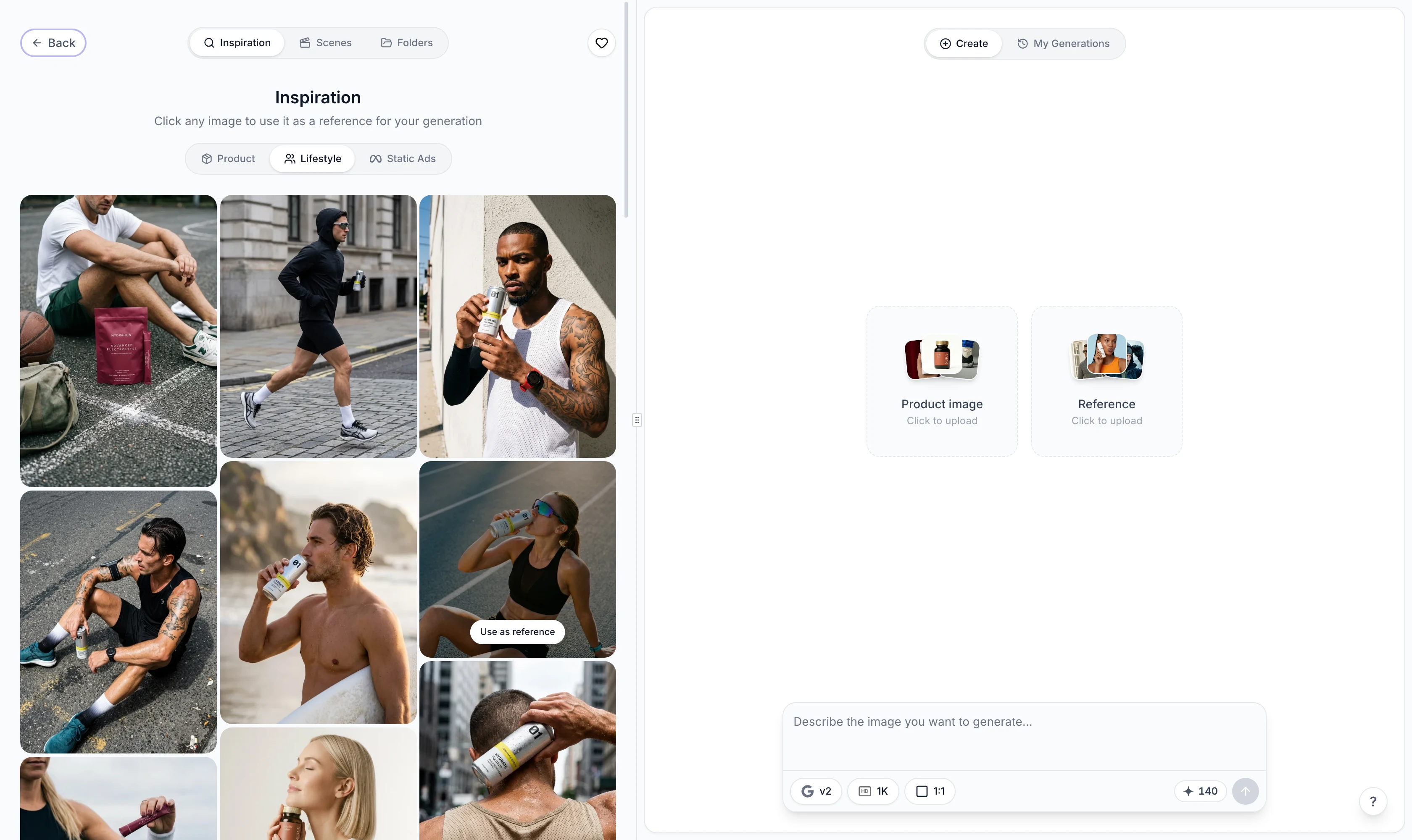
Upload a Product image so the AI keeps your product accurate in every shot, and optionally a Reference image to guide composition and style.
You can also click any image in the Inspiration gallery (Product, Lifestyle, or Static Ads tabs) to use it as a reference.
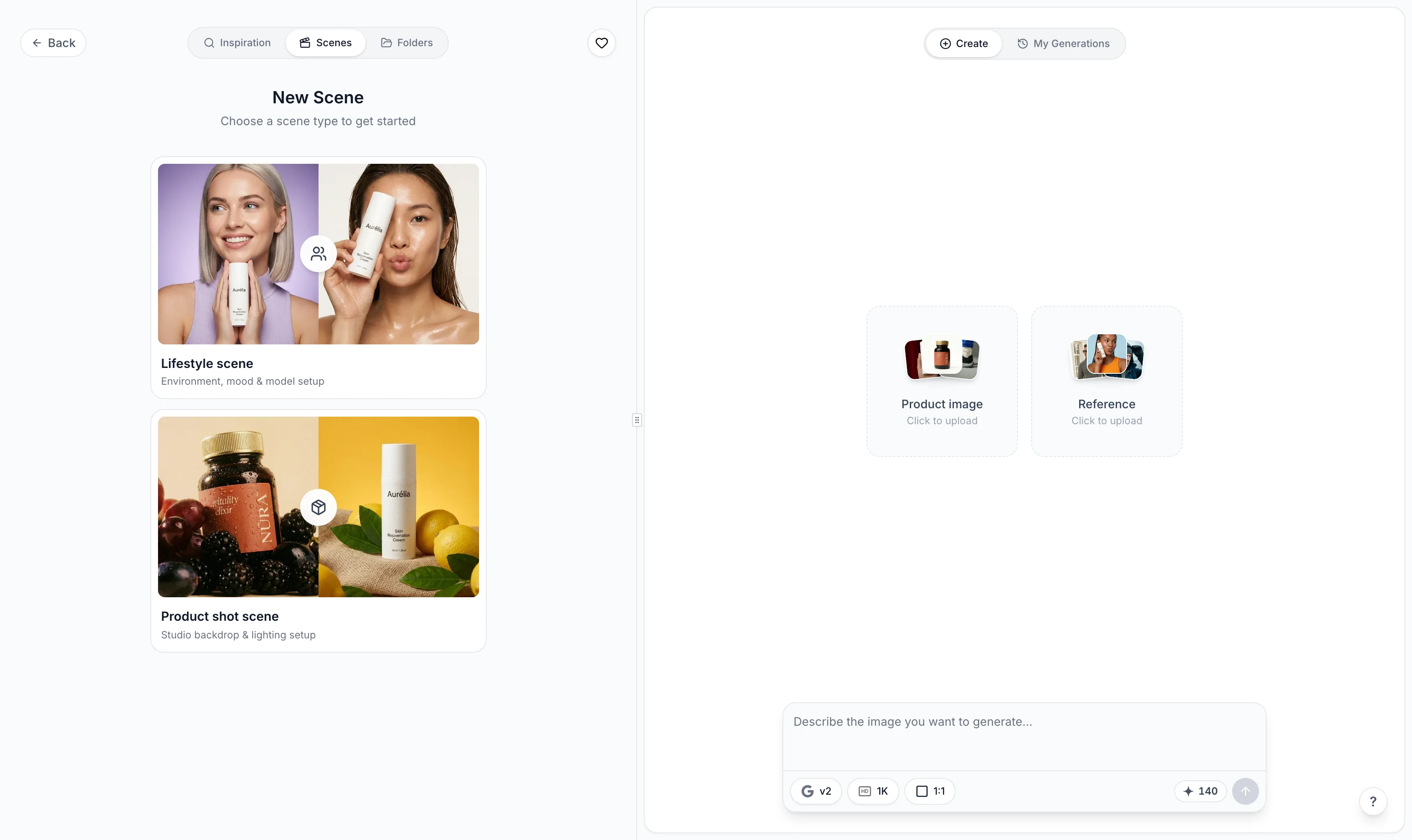
Scenes are reusable shot setups. There are two types:
Lifestyle scene - an environment, mood, and model setup.
Product shot scene - a studio backdrop and lighting setup.
Build a scene in the scene composer, save it, and reuse it across generations. Using a scene replaces the reference image. Your saved scenes live in the Scenes tab, where you can rename or edit them.
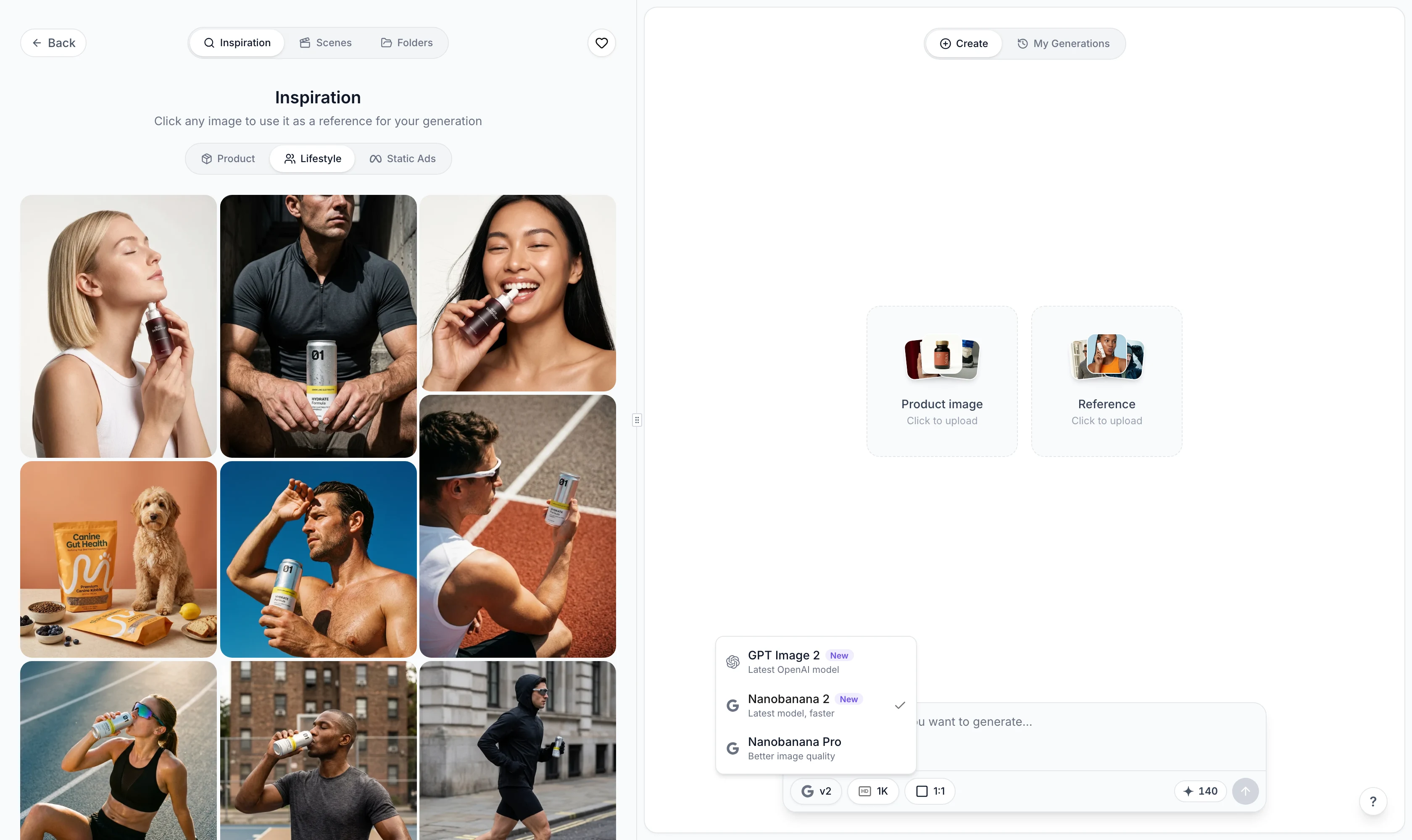
Creative Studio offers three AI models:
GPT Image 2 - the latest OpenAI model.
Nanobanana 2 - the latest model, faster. This is the default.
Nanobanana Pro - better image quality.
Resolutions are 1K and 2K, and there are seven aspect ratios: 1:1, 3:2, 2:3, 16:9, 9:16, 4:3, and 3:4. Pick them from the pills under the prompt box; the credits pill shows the exact cost before you generate.
Costs vary by model and resolution, starting at 20 credits per image:
Nanobanana 2 - 20 credits (1K) / 40 credits (2K)
Nanobanana Pro - 30 credits (1K) / 60 credits (2K)
GPT Image 2 - 50 credits (1K) / 100 credits (2K)
Background removal costs 1 credit.

My Generations keeps your full history. Use Folders to organize images, and save your favorites. Generated images can be used directly in your pages from the builder's media tools.

