Keyboard shortcuts let you perform common actions in the EcomWize Builder without reaching for the mouse. Learning these shortcuts can significantly speed up your page-building workflow.
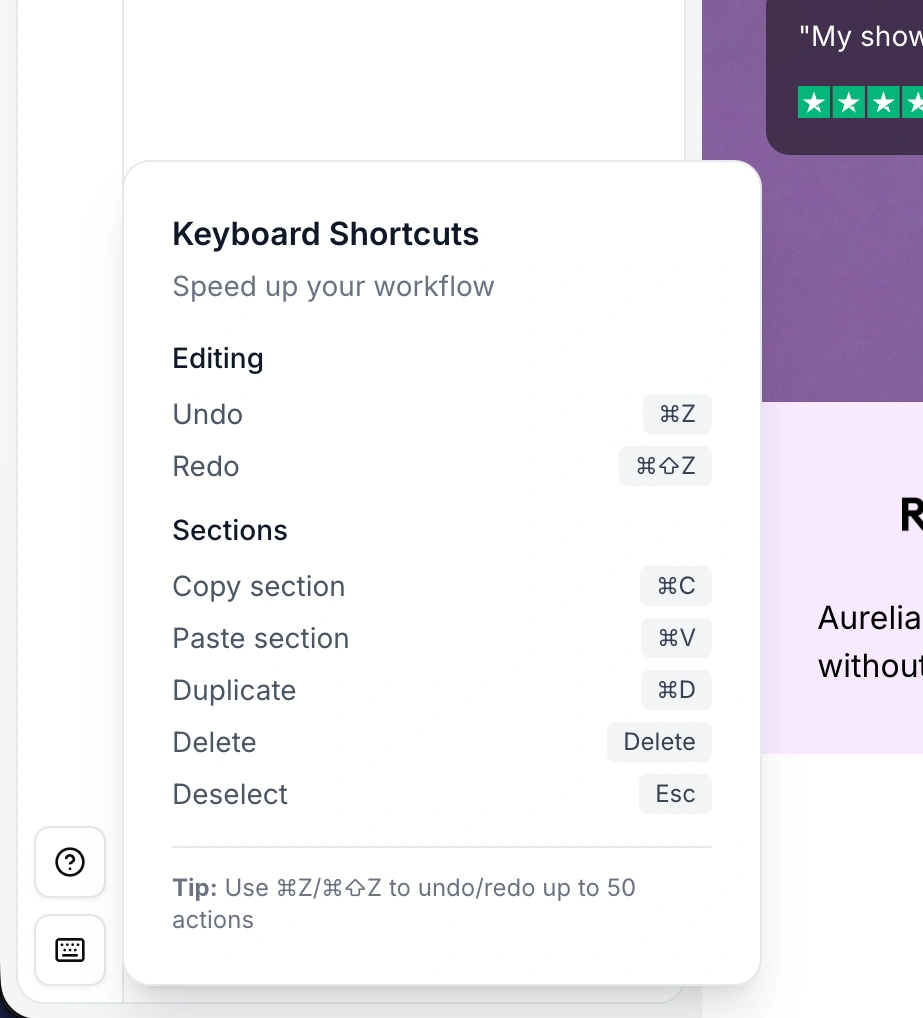
The table below lists every keyboard shortcut available in the builder. All shortcuts work whenever you are inside the page builder.
Action | Windows / Linux | Mac | Context |
Undo |
|
| Anywhere in builder |
Redo |
|
| Anywhere in builder |
Copy section |
|
| Section selected |
Paste section |
|
| Anywhere in builder |
Delete section |
|
| Section selected |
Close / Deselect |
|
| Anywhere in builder |
Bold text |
|
| Text toolbar open |
Italic text |
|
| Text toolbar open |
Underline text |
|
| Text toolbar open |
These shortcuts operate on sections - the building blocks of your page.
Every change you make in the builder is tracked in the history stack. This includes adding sections, editing text, reordering sections, deleting sections, changing configuration values, and pasting sections.
Undo (Ctrl/Cmd + Z) steps backward through the history, reverting the most recent change.
Redo (Ctrl/Cmd + Shift + Z) steps forward, reapplying a change you previously undid.

How the history stack works:
Scenario | What Happens |
You make an edit | New state is pushed to the history stack |
You undo | The history pointer moves back one state |
You redo | The history pointer moves forward one state |
You make an edit after undoing | All "future" states after the pointer are discarded and the new state becomes the latest |
You reach 50 states | The oldest state is removed from the bottom of the stack |

Copy any selected section and paste it as a duplicate on your page.
Select a section
Click on the section you want to copy in the canvas or the Layers panel.
Copy the section
Press Ctrl/Cmd + C. The section is stored in the builder's internal clipboard.
Paste the section
Press Ctrl/Cmd + V. A duplicate of the section appears directly below the currently selected section. If no section is selected, the duplicate is added at the bottom of the page.

What gets copied:
Property | Copied? |
Section type and layout | Yes |
All configuration values | Yes |
Text content | Yes |
Images and media references | Yes |
Icon selections | Yes |
Brand style overrides | Yes |
Press Delete or Backspace while a section is selected to remove it from the page.
The section is immediately removed from the canvas.
This action is recorded in the history stack, so you can undo it instantly with Ctrl/Cmd + Z.
If no section is selected, the key press does nothing.
Ctrl/Cmd + Z immediately to bring it back. As long as you have not exceeded the 50-state history limit, the deleted section is fully recoverable.The Escape key serves multiple purposes depending on the current context:
Context | Behavior |
A toolbar is open (text, icon, tag, stars) | Closes the toolbar |
A modal or dialog is open | Closes the modal |
A section is selected | Deselects the section |
A panel is open (config, sections, settings) | May close the panel depending on focus |
Escape is processed in priority order: it first closes any open toolbar, then any modal, then deselects the current section. This means you can press Escape multiple times to progressively dismiss UI elements.
When the text formatting toolbar is active (you have clicked on a text element in a section), these additional shortcuts become available:
Ctrl/Cmd + B toggles bold formatting on the selected text or the entire text block.
If you have selected a portion of text, only that portion becomes bold.
If no text is selected but the cursor is in the text field, the bold state toggles for subsequent typing.
Ctrl/Cmd + I toggles italic formatting on the selected text or the entire text block.
Works the same as bold - applies to the selection or toggles the state for new text.
Ctrl/Cmd + U toggles underline formatting on the selected text or the entire text block.
Works the same as bold and italic for partial or whole-text application.
Not all shortcuts are available at all times. The table below shows when each shortcut is active.
Shortcut | Canvas (no selection) | Section selected | Text toolbar open | Modal open |
Undo | Yes | Yes | Yes | No |
Redo | Yes | Yes | Yes | No |
Copy | No | Yes | No | No |
Paste | Yes (bottom) | Yes (below selected) | No | No |
Delete | No | Yes | No | No |
Escape | No | Deselects | Closes toolbar | Closes modal |
Bold | No | No | Yes | No |
Italic | No | No | Yes | No |
Underline | No | No | Yes | No |
Start by learning the three most common shortcuts: Undo (Ctrl/Cmd + Z), Copy (Ctrl/Cmd + C), and Paste (Ctrl/Cmd + V). These three alone cover the majority of repetitive actions in the builder. Once they feel natural, add Delete and Escape to your repertoire.
Select a section, press Ctrl/Cmd + C to copy, then Ctrl/Cmd + V multiple times to create several duplicates. Then click each one and customize the content. This is the fastest way to build pages with repeating section patterns like testimonials, feature lists, or product cards.
If you have multiple toolbars and panels open and want a clean view of your canvas, press Escape a few times. It progressively closes toolbars, dismisses modals, and deselects sections, giving you a clear workspace.
The undo history tracks all section operations uniformly. Whether you edited text, changed an icon, reordered sections, or modified configuration values, a single Ctrl/Cmd + Z reverts the last change regardless of type.
