To publish landing pages to your Shopify store, you need to connect it to EcomWize Builder. EcomWize is an official Shopify App, so connecting your store takes just one click - install the app from the Shopify App Store, pick your store, done.
Before you begin, make sure you have:
A Shopify store (any plan)
An EcomWize Builder account
The connection takes less than a minute:
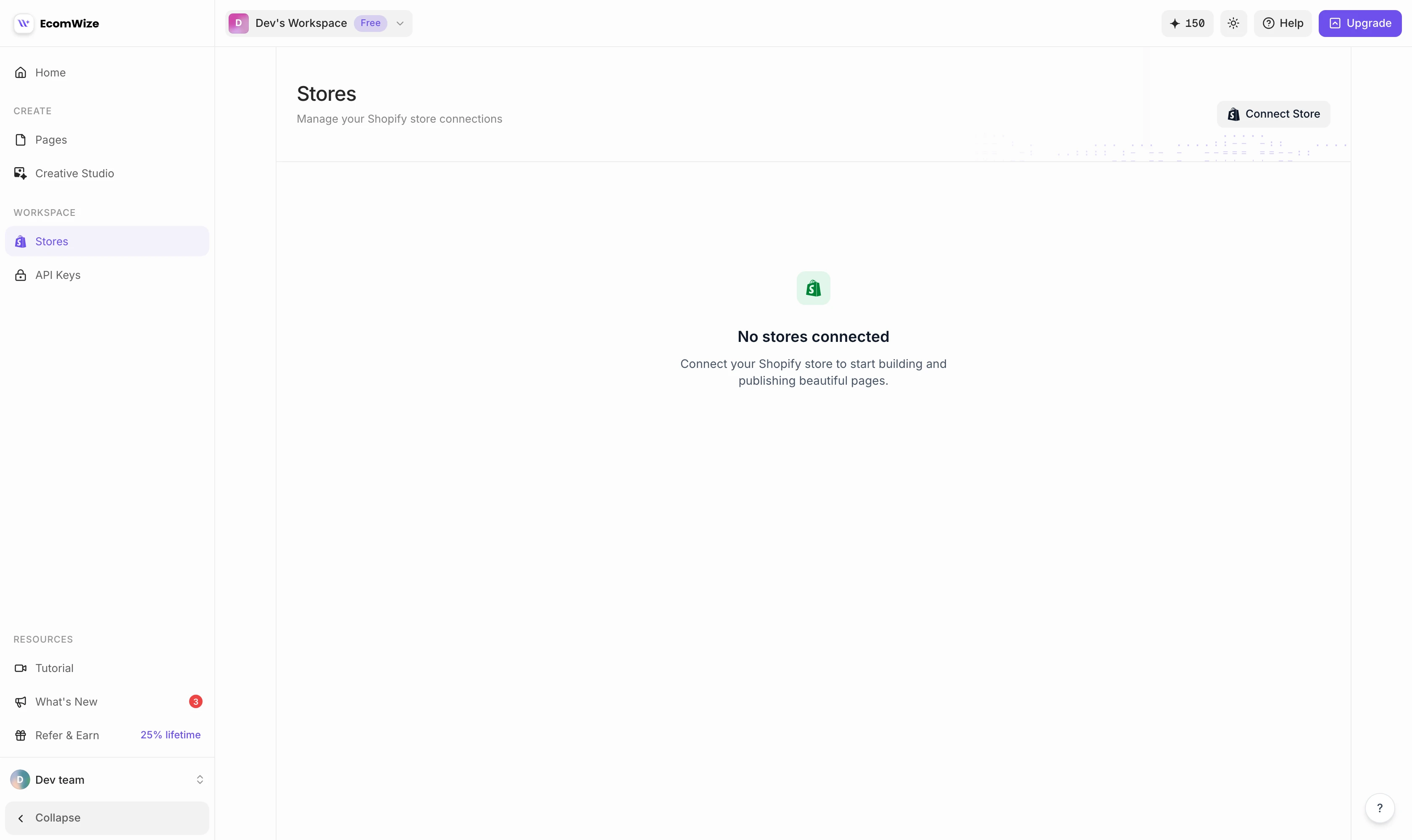
Step 1: Open the Stores page
Go to the Stores page from your EcomWize dashboard and click the Connect Store button.
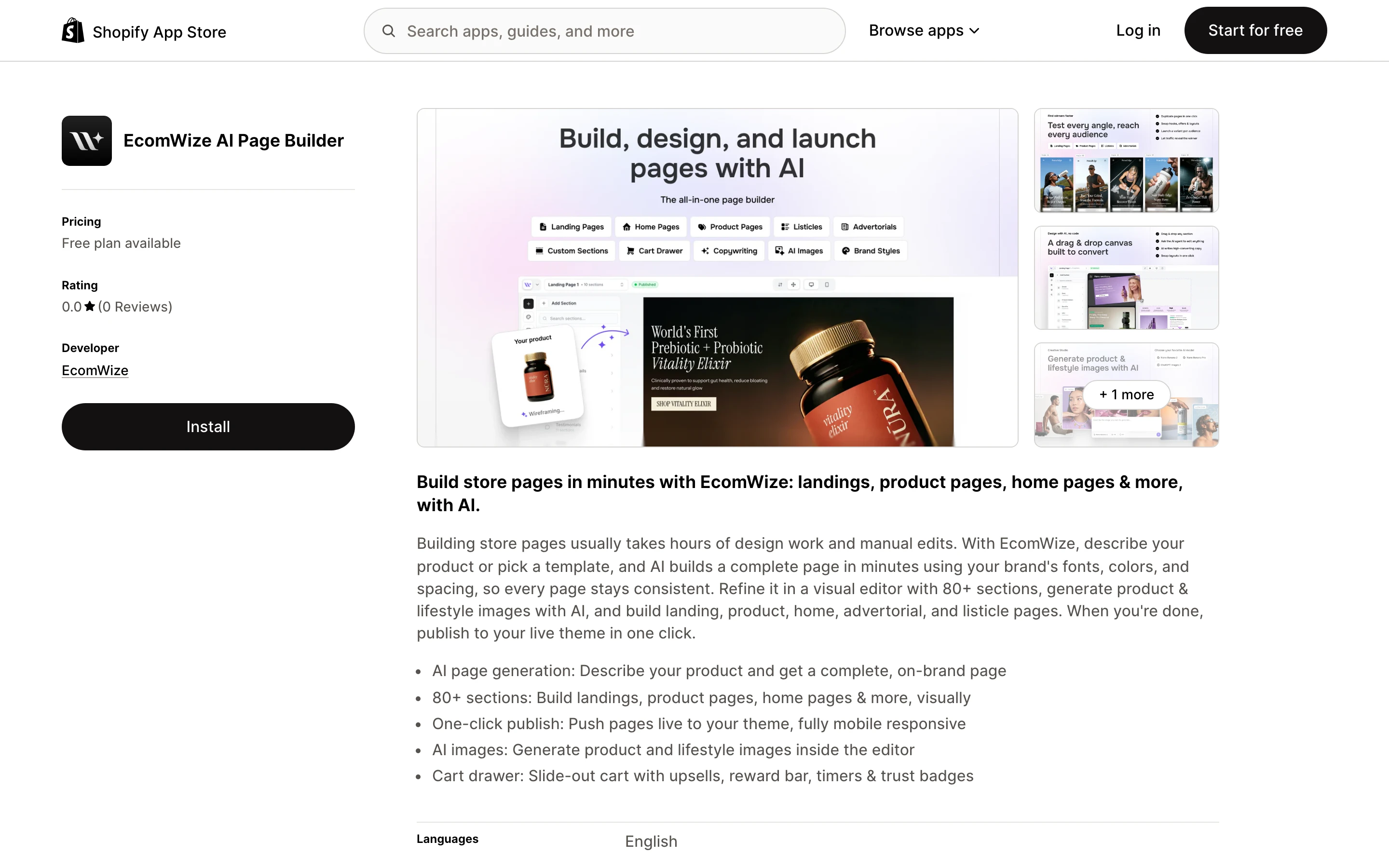
Step 2: Install the EcomWize app
You will be taken to the EcomWize app on the Shopify App Store. Click Install.
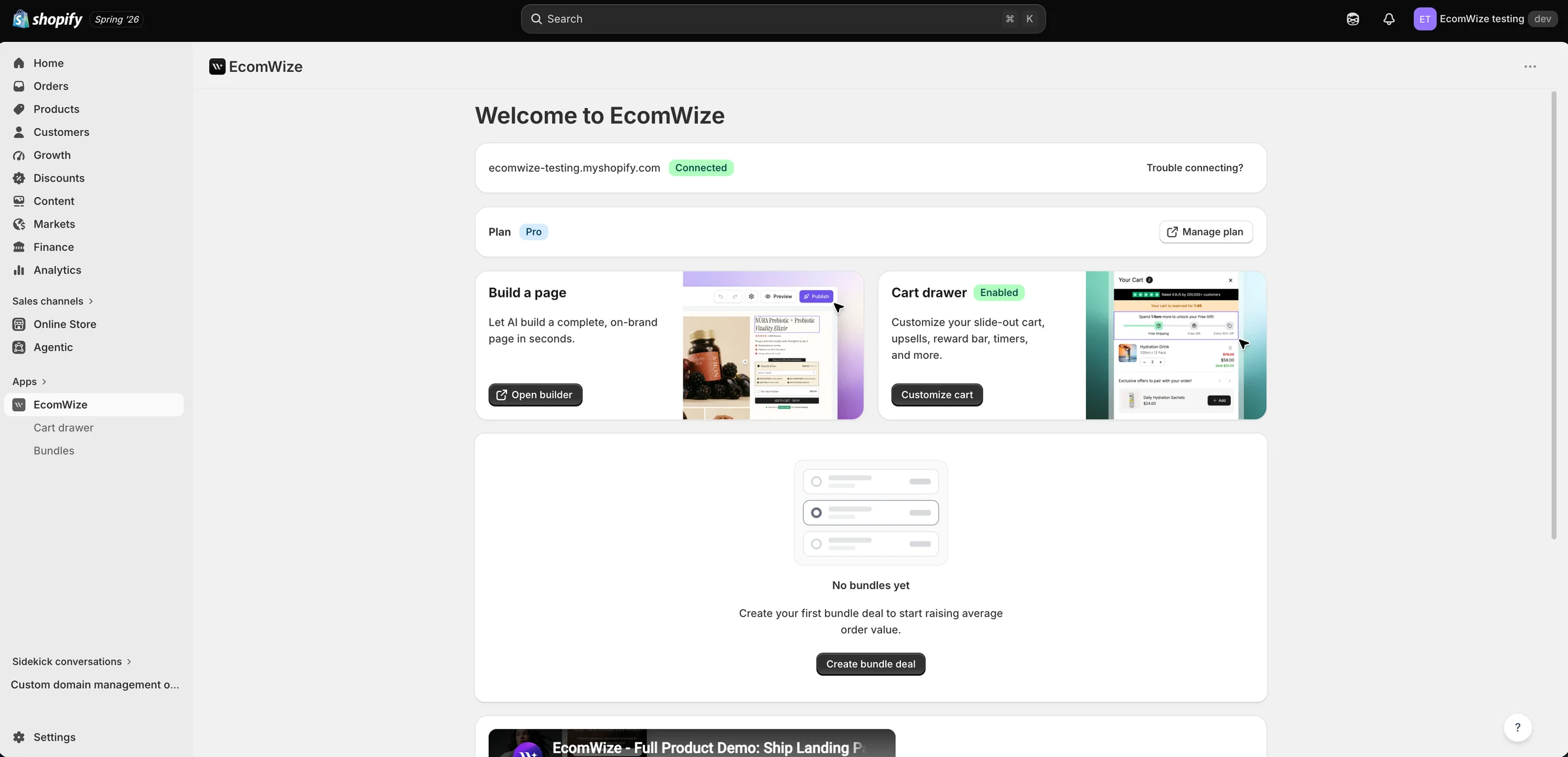
Step 3: Pick your store and approve
Choose the store you want to connect, review the permissions, and approve the installation. You will be redirected back to EcomWize with your store connected.


EcomWize supports connecting multiple Shopify stores depending on your plan:
Plan | Maximum Stores |
Free | 1 store |
Starter | 1 store |
Pro | Unlimited stores |
Enterprise | Unlimited stores |
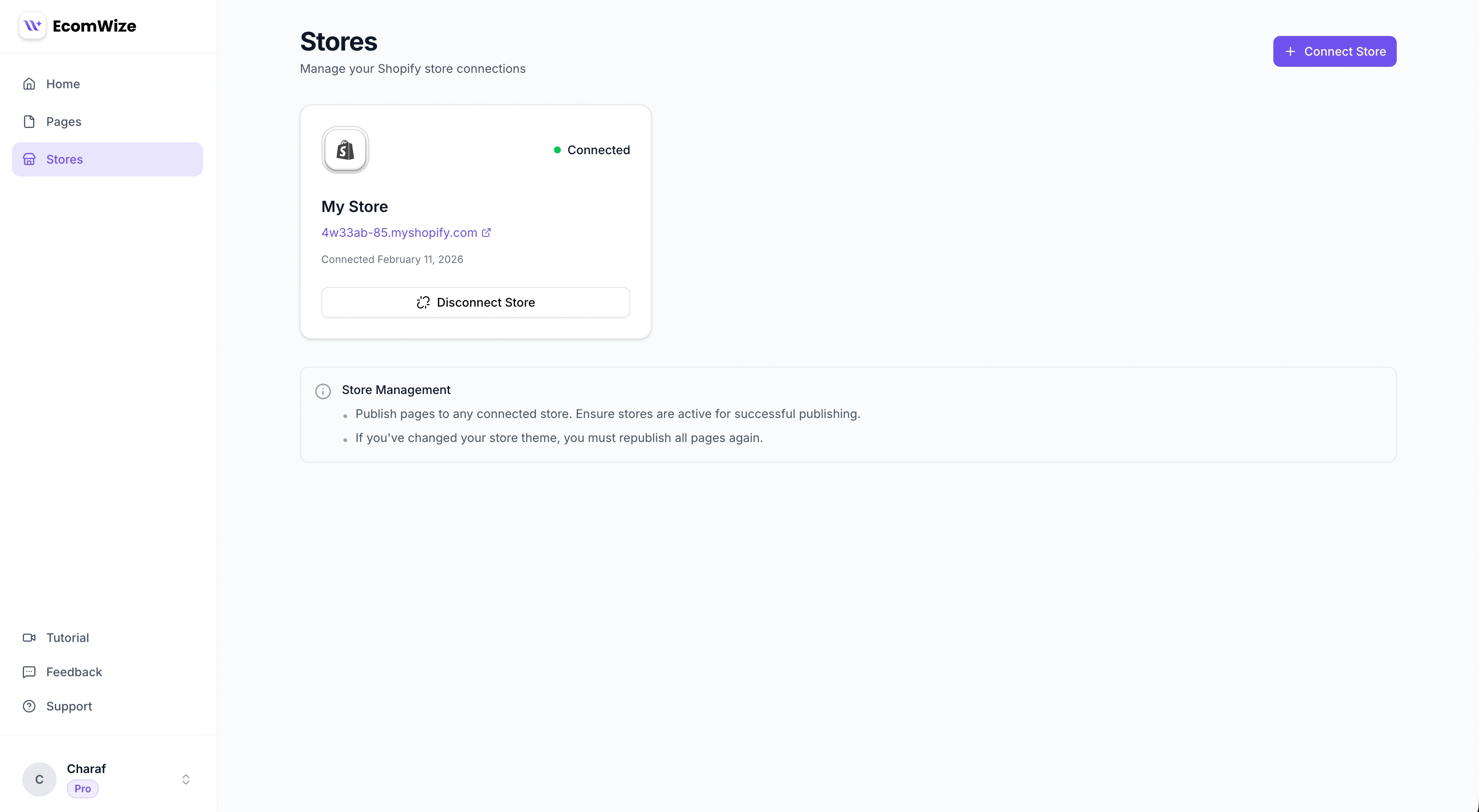
After connecting, your store should appear on the Stores page with a connected status.
You can verify the connection is working by:
Opening any page in the builder
Going to Page Settings
Checking that your store appears in the Store dropdown
Trying to search for products (if your store has products)
To disconnect a store:
Go to the Stores page
Find the store you want to disconnect
Click the disconnect or remove option
Confirm the disconnection

These errors only affected the old manual connection method, which has been removed. With the official Shopify App there are no install limitations: no store mismatch errors, no same-organization restriction, no incognito workarounds needed, and Partner, collaborator, and agency accounts can all install the app. If you still see one of these errors, your store is on the old connection - go to Stores > Disconnect Store, then Connect Store to migrate. Your pages stay untouched.
Make sure you are logged into the Shopify account that has access to the store you want to connect, then start again from Stores > Connect Store.
