When publishing a page from EcomWize to Shopify, you choose a template type that determines how the page is created and accessed on your store. EcomWize supports three publishing modes: page template, product template, and homepage publishing.
A page template creates a standalone Shopify page with its own URL.
When to use: Landing pages, about pages, FAQ pages, brand story pages, campaign pages, and any standalone content that is not tied to a specific product.
Resulting URL: https://yourstore.com/pages/your-page-handle
Set template type to Page
In Page Settings, select Page as the template type. This is the default option.
Configure page metadata
Set the page title, handle (URL slug), and meta description. The handle determines the URL path - for example, a handle of summer-sale creates the URL /pages/summer-sale.
Publish
Click Publish. EcomWize creates a new Shopify page using a custom template with your sections.

best-sellers, how-it-works).A product template creates a custom Shopify product page template. Instead of creating a standalone page, it replaces the default product page layout for a specific product.
When to use: Custom product landing pages, product launch pages, or any page designed around a specific product where you want to replace the default Shopify product page.
Resulting URL: https://yourstore.com/products/product-handle
Set template type to Product
In Page Settings, select Product as the template type.
Link a product
Select the Shopify product this template is for. The product handle determines the URL. See Product Linking for details.
Publish
Click Publish. EcomWize creates a product template and assigns it to the selected product in Shopify.

Homepage publishing replaces your Shopify store's homepage with your EcomWize page.
When to use: When you want to use EcomWize to build your store's entire homepage.
Enable homepage publishing
In Page Settings, toggle on the Publish as Homepage option.
Publish
Click Publish. EcomWize backs up your current homepage template and replaces it with the new EcomWize-generated template.

If you want to revert to your original homepage:
Go to Page Settings for the homepage page
Click the Restore original homepage option
Confirm the restoration
The backed-up homepage template will be restored, and the EcomWize homepage will be removed.
Alongside the template type, Page Settings includes a Shopify navigation picker that controls what your published page shows from your store theme's own navigation:
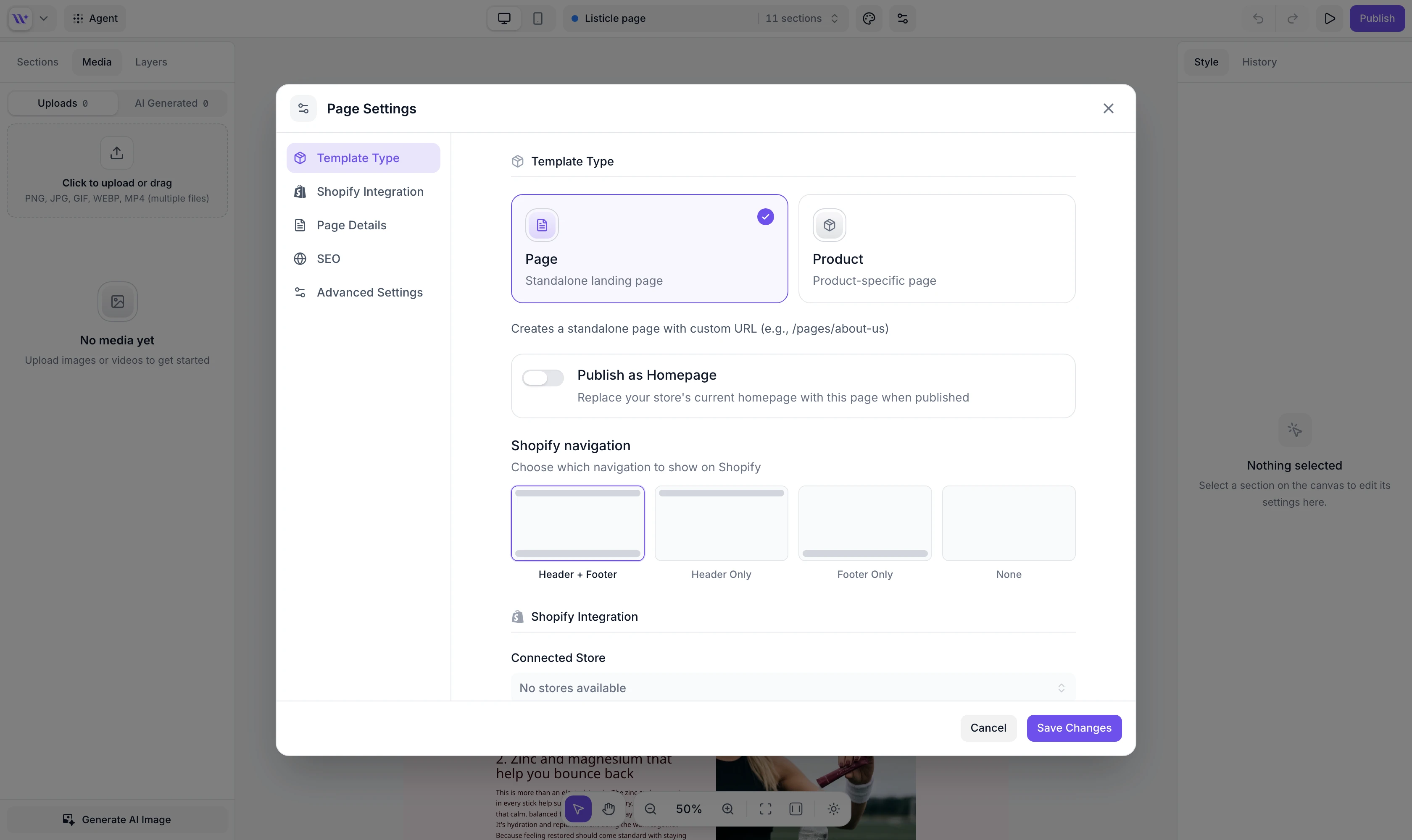
Header + Footer - Shows both the theme's header and footer around your page.
Header Only - Shows only the theme's header.
Footer Only - Shows only the theme's footer.
None - Hides the theme's navigation entirely, ideal for distraction-free landing pages.
The Edit content in Shopify toggle (found in Page Settings > Advanced Settings) makes text and images editable right inside the Shopify theme editor.
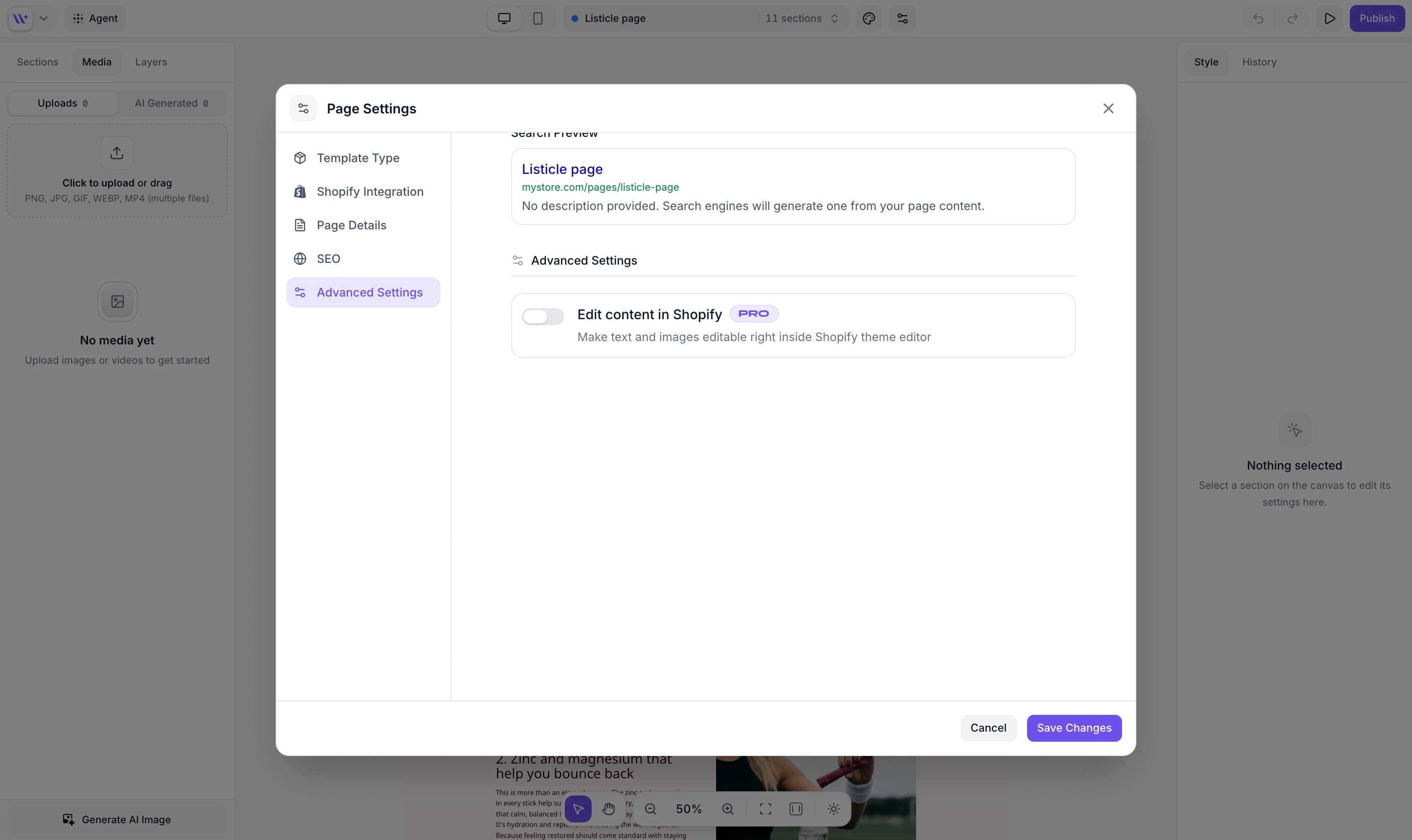
Store owners can edit section content (text, images, colors) directly in the Shopify theme editor
Useful when handing off the page to a client or store manager who prefers working in Shopify
All future edits must be made in EcomWize and re-published
Simpler output with fewer potential issues
Regardless of template type, you can configure these metadata fields for SEO and URL management:
Field | Description | Example |
Title | The page title shown in browser tabs and search results | "Summer Sale - 50% Off Everything" |
Handle | The URL slug for the page |
|
Meta description | SEO description shown in search engine results. Set it in the Page Settings SEO tab, which includes a live search preview | "Shop our biggest summer sale with up to 50% off all products. Limited time only." |
Use Page Template when... - - You are building a standalone landing page - The page is not tied to a specific product - You want a custom URL path under /pages/ - Examples: campaign pages, about pages, FAQ pages
Use Product Template when... - - You are building a custom product landing page - You want to replace the default Shopify product page - You need product data (variants, pricing, add-to-cart) - Examples: product launches, high-conversion product pages
