When a page owner enables duplication on a shared page, viewers can create their own copy with a single click. This is the fastest way to start from an existing design.
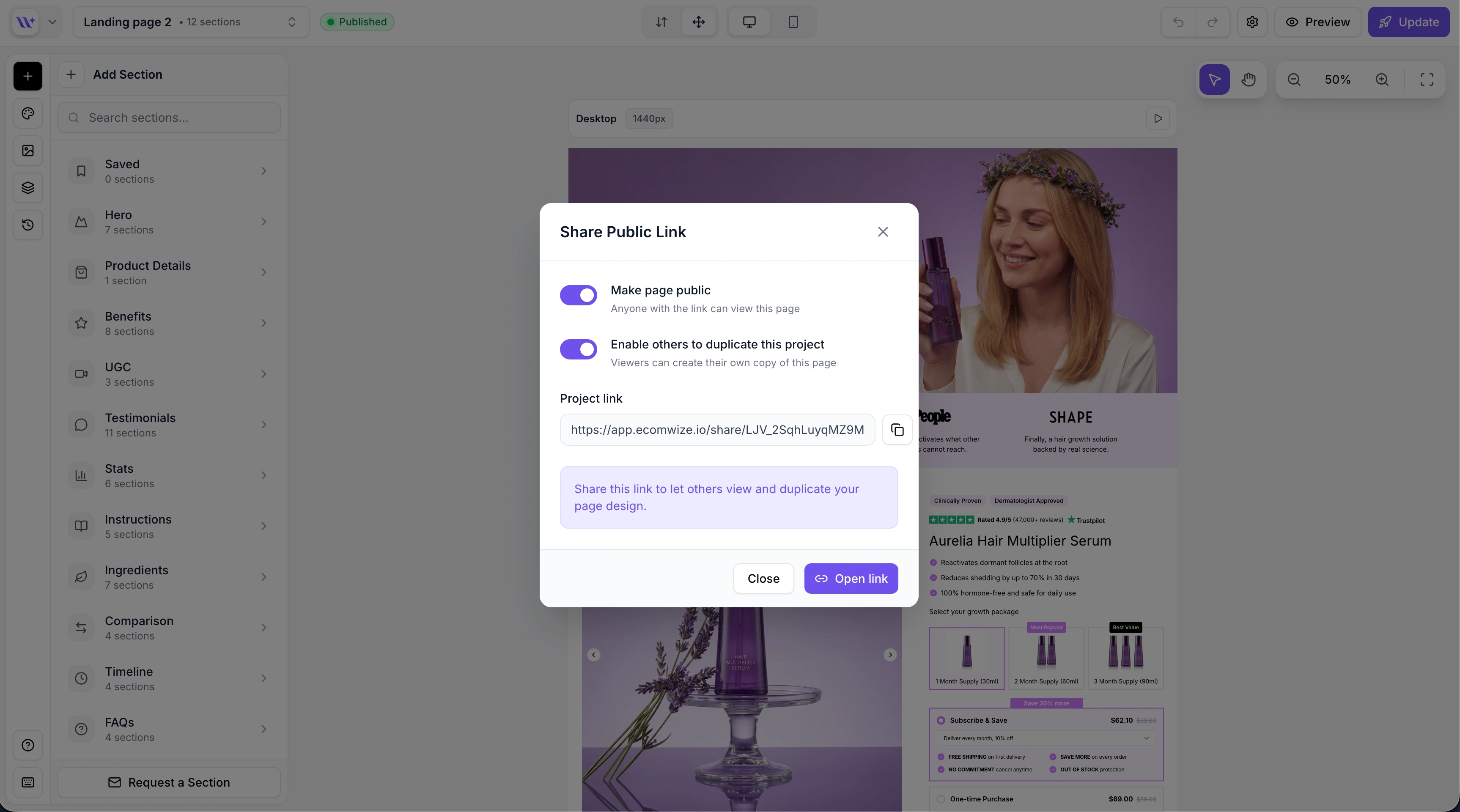
Duplication is only available when the page owner has explicitly enabled the Enable others to duplicate this project toggle in the Share modal. When enabled:
A Use template button appears in the top-right corner of the shared page header.
The button is styled prominently so viewers can easily find it.

Open the shared page
Visit the shared page URL in your browser. The page renders in full preview mode.
Click Use template
Click the Use template button in the top-right corner of the header. If you are not logged in, you will be redirected to the signup or login page first.
Wait for the copy to be created
The button shows a loading spinner with "Duplicating..." text while the copy is being created. This usually takes just a few seconds.
Start editing your copy
Once the duplication is complete, you are automatically redirected to the builder with your new page loaded and ready to edit.
When you duplicate a shared page, the following elements are preserved in your copy:
Element | Copied? | Notes |
All sections | Yes | Every section and its full configuration are duplicated |
Brand style | Yes | A private copy of the brand style is created in your account |
Page title | Yes | Modified to "\{Original Title\} (Copy)" |
Meta description | Yes | Copied as-is |
Template type | Yes | Page or product type is preserved |
URL handle/slug | Yes | Modified with a unique suffix to avoid conflicts |
Certain elements are intentionally not copied to ensure a clean starting point:
Element | Value After Duplication |
Store connection | Not copied - you must connect your own store |
Product link | Not copied - you must link your own product |
Page status | Set to draft (not published) |
Sharing settings | Sharing is disabled by default |

The brand style is not simply linked - a complete, independent copy is created in your account. This means:
The copy is named "\{Original Brand Style Name\} (Copy)"
You can modify the copied brand style without affecting the original
All design properties (fonts, colors, spacing, etc.) are duplicated
Duplication respects your account's plan limits:
If you have reached your page limit, you will see an error toast with an option to upgrade your plan.
If you are on the Free plan, you can duplicate pages but cannot publish them to Shopify.

You must be logged in to duplicate a page. If you are not authenticated when you click "Use template":
You are redirected to the signup page with a return URL.
After creating your account (or logging in), you are returned to the shared page.
The duplication process starts automatically.
