Connecting your Shopify store to EcomWize allows you to publish landing pages directly to your Shopify theme. EcomWize is an official Shopify App, so connecting your store takes just one click.

Step 1: Open the Stores page
From the EcomWize dashboard, go to Stores and click the Connect Store button.
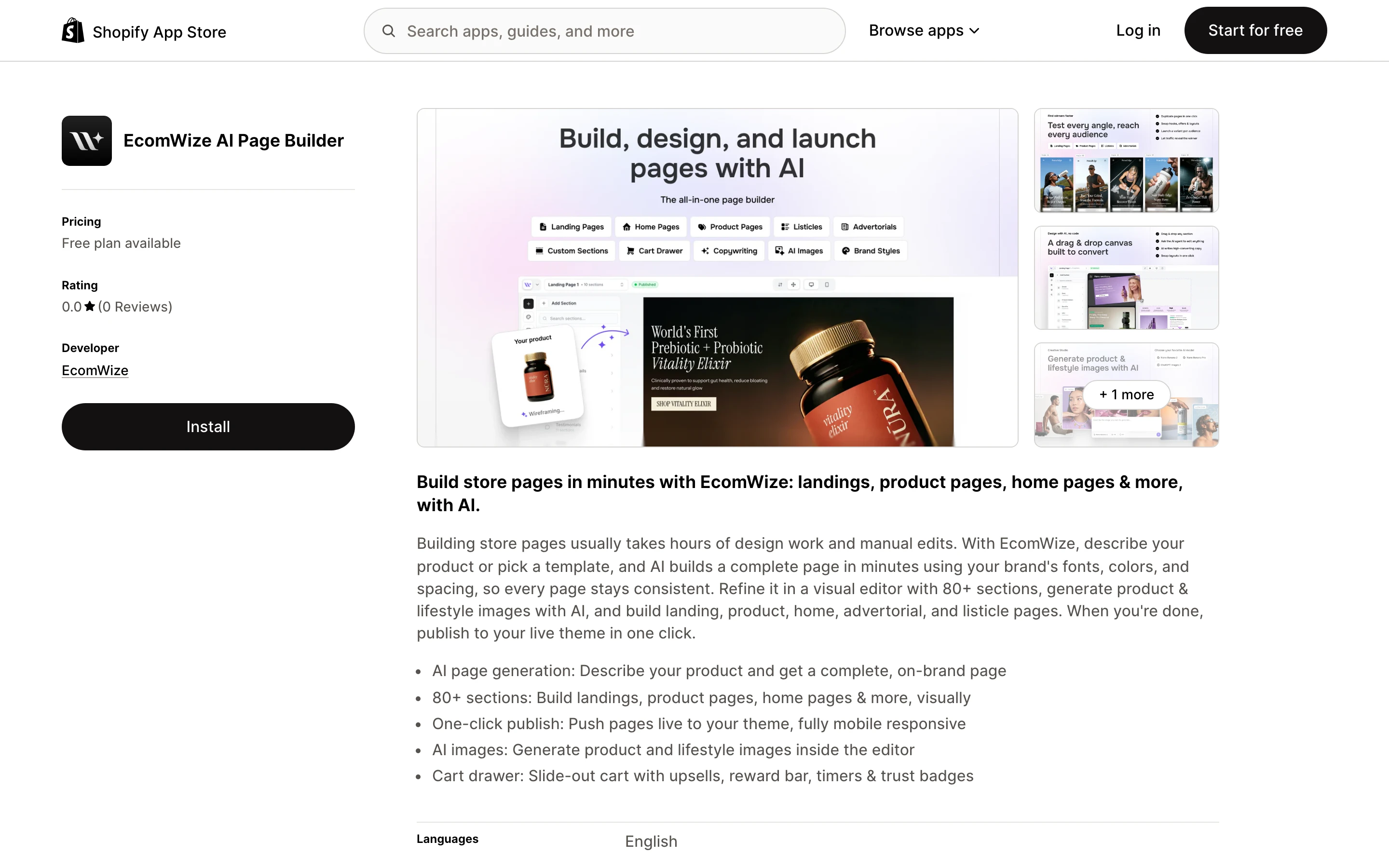
Step 2: Install EcomWize from the Shopify App Store
You are taken to the EcomWize listing on the Shopify App Store (apps.shopify.com/ecomwize). Click Install and approve the permissions in your Shopify admin.
Step 3: Done
After approving, you are redirected back to EcomWize with your store connected and ready for publishing.


## Verify your connection After connecting, your store will appear on the **Stores** page with a status badge: - **Connected** - The store is linked and ready for publishing - **Error** - There was a problem with the connection (re-authorize by reconnecting the store) You can click on a connected store to see its domain and manage the connection. ## Manage multiple stores EcomWize supports connecting multiple Shopify stores. The number of stores you can connect depends on your plan: | Plan | Max stores | |------|-----------| | Free | 1 | | Starter | 1 | | Pro | Unlimited | | Enterprise | Unlimited | When creating or publishing a page, you select which store to publish to from a dropdown. Each page is associated with one store at a time.
## Disconnect a store If you need to remove a store connection:
Go to the Stores page
Navigate to Stores from the sidebar.
Click the delete button
Find the store you want to disconnect and click the trash icon or Disconnect button on the store card.
Confirm disconnection
A confirmation dialog will appear. Click Disconnect to confirm. This removes the store connection from EcomWize.
## Troubleshooting
This usually means the session expired. Close and start the connection process again. Make sure your browser allows cookies from EcomWize.
This can happen if the EcomWize app was uninstalled from the Shopify store. Reconnect the store by going to Stores and clicking Connect Store again.
