EcomWize gives you three ways to create a new page: using an AI prompt to generate a full page automatically, starting from a template combined with a prompt, or creating a blank page manually. All methods take you to the builder canvas where you can edit every detail.
The fastest way to get started is to describe what you want and let EcomWize build it for you.
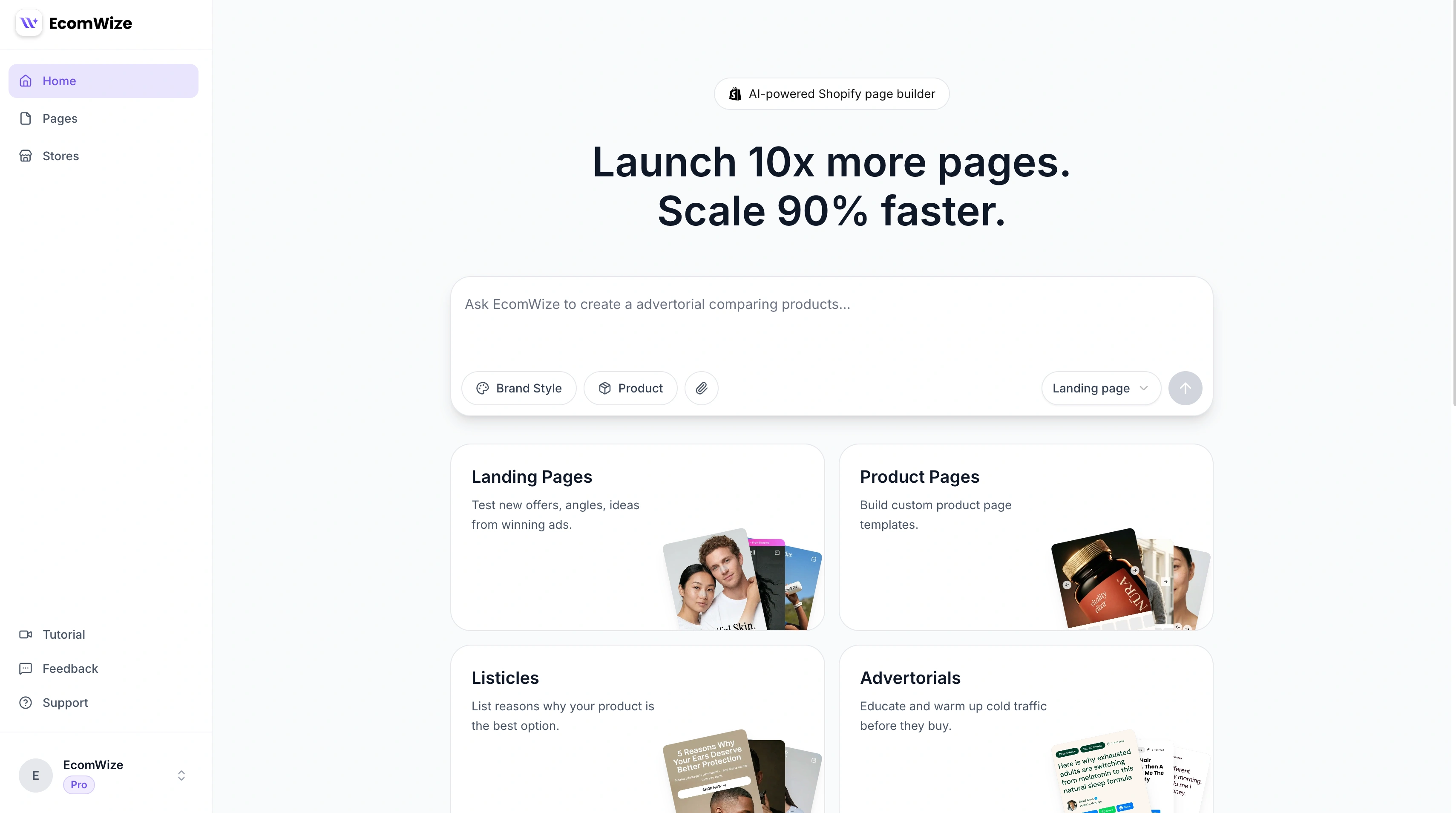
Go to the Dashboard
After logging in, you land on the Dashboard. This is where you create new pages.
Type a prompt
In the large input field at the top of the dashboard, describe the page you want to create. Be specific about your product, target audience, emotional angle, and positioning. For example:

More examples:
"Build a product page for an organic protein powder targeting gym-goers in their 20s who want clean ingredients, highlight the taste and mixability"
"Design a listicle about the top 5 reasons busy moms should switch to our meal prep delivery service, focus on time savings and guilt-free nutrition"

Choose a page type
Next to the submit button, a dropdown lets you select the page type:
Landing Pages - Test new offers, angles, and ideas from winning ads
Product Pages - Build custom product page templates
Listicles - List reasons why your product is the best option
Advertorials - Educate and warm up cold traffic before they buy
Below the input, you will also see four optional page type cards with suggestions. These are just for inspiration - clicking a card pre-fills the prompt with a relevant starting phrase.
Select a brand style
Choose a brand style to apply consistent typography, colors, and spacing across your page. If you have not created one yet, you can pick a default and customize it later.
Link a product (optional)
You can optionally link a Shopify product to your page. When linked, product sections (like product details, variant selectors, and pricing) will automatically pull data from your product.
Search for a product by name from the dropdown. Products are loaded from your connected Shopify store.
Upload reference images (optional)
You can drag and drop or upload up to 10 reference images. These images will be used as visual context for the AI when generating your page, and will be uploaded to your media library for use in sections.
Generate your page
Press Enter or click the send button to start generating. EcomWize will create a full page with sections, content, and styling based on your prompt. You will be taken directly to the builder canvas once generation is complete.
If you prefer to start from a pre-designed layout, you can use a template combined with an AI prompt.
Browse available templates
On the dashboard, scroll down below the prompt input to find the template gallery. Templates are organized by category and each one shows a preview of what the finished page looks like.
Select a template
Click on a template to select it. The template will be tagged in the prompt input area, and you can add a custom prompt to describe what changes you want the AI to make.
Configure your page settings
Just like with AI-generated pages, select your brand style and optionally link a product.
Create the page
Submit the form to create your page. The template's sections will be loaded into the builder, with any AI-generated customizations applied.
You can also create a completely blank page and add sections manually:
Go to the Pages list
Navigate to Pages in the sidebar.
Click Create New Page
Click the New Page button to open the page creation form.
Fill in page details
Enter the following:
Page Title (required) - A descriptive name for your page (e.g., "Summer Collection Landing Page")
Brand Style (required) - Select a brand style for consistent design
Create and start building
Click Create Page to be taken to the builder canvas with an empty page. From there, you can add sections from the sections panel.
After creating your page, you are taken to the builder canvas where you can:
Add, remove, and reorder sections
Edit text, images, and configuration for each section
Apply and adjust your brand style
Preview your page on desktop and mobile
Publish directly to your Shopify store
Builder overview - Learn about the builder interface and its tools.
Adding sections - Explore the 70+ pre-built sections available.
